Some time ago, I shipped a component that felt accessible by every measure I could test. Keyboard navigation worked. ARIA roles were correctly applied. Automated audits passed without a single complaint. And yet, a screen reader user couldn’t figure out how to trigger it. When I tested it myself with keyboard-only navigation and NVDA, I saw the same thing: the interaction simply didn’t behave the way I expected.
Nothing on the checklist flagged an error. Technically, everything was “right.” But in practice, the component wasn’t predictable. Here’s a simplified version of the component that caused the issue:
As you can see in the demo, the markup is not at all complicated:
And the fix was much easier than expected. I had to delete the ARIA role attribute that I had added with the best intentions.
The markup is even less complicated than before:
That experience changed how I think about accessibility. The biggest lesson was this: Semantic HTML does a lot more accessibility work than we usually give it credit for already — and ARIA is simple to abuse when we use it both as a shortcut and as a supplement.
Many of us already know the first rule of ARIA: don’t use it. Well, use it. But not if the accessible benefits and functionality you need are already baked in, which it was in my case before adding the role attribute.
Let me outline exactly what happened, step-by-step, because I think the my error is actually a pretty common practice. There are many articles out there that say exactly what I’m saying here, but I think it often helps to internalize it by hearing it through a real-life experience.
Note: This article was tested using keyboard navigation and a screen reader (NVDA) to observe real interaction behavior across native and ARIA-modified elements.
1: Start with the simplest possible markup
Again, this is merely a minimal page with a single native and no ARIA. And by default, it allows keyboard focus and demonstrates the functionality of using Tab, Enter, and Space out of the box. Geoff recently made this case when explaining the accessibility benefits of semantic HTML elements.
If the interaction triggers an action, then that element is a button. And in this case, the is designed to run a script that saves changes to a user profile:
That single line gives us a surprising amount for free:
- Keyboard activation with the
EnterandSpacekeys - Correct focus behavior
- A role that assistive technology already understands
- Consistent announcements across screen readers
At this point, there is no ARIA — and that’s intentional. But I did have an existing class for styling buttons in my CSS, so I added that:
2: Observe the native behavior before adding anything
With just the native element in place, I tested three things:
- Keyboard only (Tab, Enter, Space)
- A screen reader (listening to how the control is announced)
- Focus order within the page
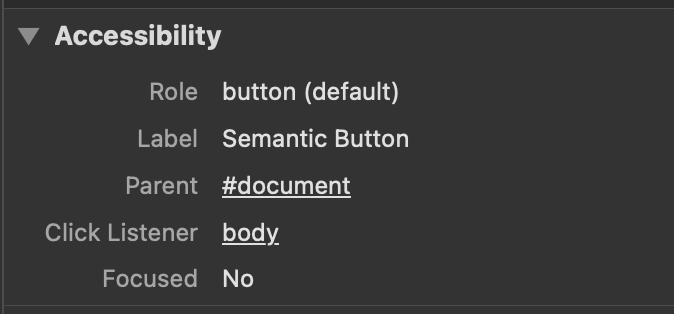
Everything behaved predictably. The browser was doing exactly what users expect. This step matters because it establishes a baseline. If something breaks later, you know it wasn’t HTML that caused it. In fact, we can see that everything is in perfect working order by inspecting the element in DevTool’s Accessibility panel.

3: Add well‑intentioned ARIA
The problem crept in when I tried to make the button behave like a link:
I did this for styling and routing reasons. This button needed to be styled a little differently than the default .cta class and I figured I could use the ARIA attribute rather than using a modifier class. You can start to see how I let the styling dictate and influence the functionality. A is still the correct element for this purpose, but I wanted it to look like a link because of the design requirements. Might as well give that element a link role then, right?
On the surface, nothing seemed broken. Automated tools stayed quiet. But in real use, the cracks showed quickly:
- Space no longer activated the control reliably.
- Screen readers announced conflicting roles.
- Keyboard users encountered behavior that didn’t fully match either a button or a link.
ARIA didn’t add clarity here; it introduced ambiguity. But I had already “tested” my work and nothing was screaming at me that I’d conflated the element’s role with another type of element. Again, all it takes is a quick look at DevTools.

4: Back to semantics
The fix wasn’t clever. It was subtractive. I reverted my styles, used a class for styling, and went back to the semantic markup prior to changing the accessible role:
I know it sounds easy: if it’s an action, use a . If it takes you somewhere, use a link (). But, in practice, we’re making decisions with every key we type and it’s just as easy to conflate actions with destinations. In this case, I totally used the correct element! My mistake was thinking that ARIA was an appropriate styling hook for my CSS.
Once the correct element was in place — absent of ARIA — the issues disappeared. Instead, I could define a new classname and, you guessed it, use keep styles with styles.
Just like that, I was able to style the element how I needed and the user who report the issue was able to confirm that everything worked as expected. It was an inadvertent mistake born of a basic misunderstanding about ARIA’s place in the stack.
Why this keeps happening
ARIA attributes are used to define the nature of something but they do not redefine the behavioral default of the native elements. When we override semantics, we quietly take responsibility for:
- keyboard interactions,
- focus management,
- expected announcements, and
- platform‑specific quirks.
That’s a large surface area to maintain, and it’s why small ARIA changes can have outsized and unpredictable effects.
A rule I now follow
Here’s the workflow that has saved me the most time and bugs:
- Use native HTML to express intent.
- Test with keyboard and a screen reader.
- Add ARIA only to communicate missing state, not to redefine roles.
If ARIA feels like it’s doing heavy lifting, it’s usually a sign the markup is fighting the browser.
Where ARIA does belong
One example would be a simple disclosure widget using a native plus aria-expanded to communicate state — showing ARIA used to add state, not replace semantics.
This demo uses a native with aria-expanded, which is toggled with a sprinkle of JavaScript:
const button = document.getElementById("toggle");
const panel = document.getElementById("panel");

button.addEventListener("click", () => {
  const expanded = button.getAttribute("aria-expanded") === "true";
  button.setAttribute("aria-expanded", !expanded);
  panel.hidden = expanded;
});
The accessible state (true/false) is communicated correctly without replacing the button’s semantics.
Now, I know that ARIA is essential when:
- communicating expanded or collapsed state,
- announcing dynamic updates,
- building truly custom widgets, and
- exposing relationships HTML can’t express.
Used this way, ARIA complements semantic HTML instead of competing with it.
Let the platform work for you
The biggest accessibility improvement I’ve made wasn’t learning about more attributes — it was trusting the ones browsers already understand. Semantic HTML is not the baseline you move past. It’s the foundation that everything else depends on.
And that’s what I really hope you take away from my experience. We all make mistakes. It’s part of the job, unfortunately. But what good are they if we can’t learn from them, even if it takes a hard lesson.