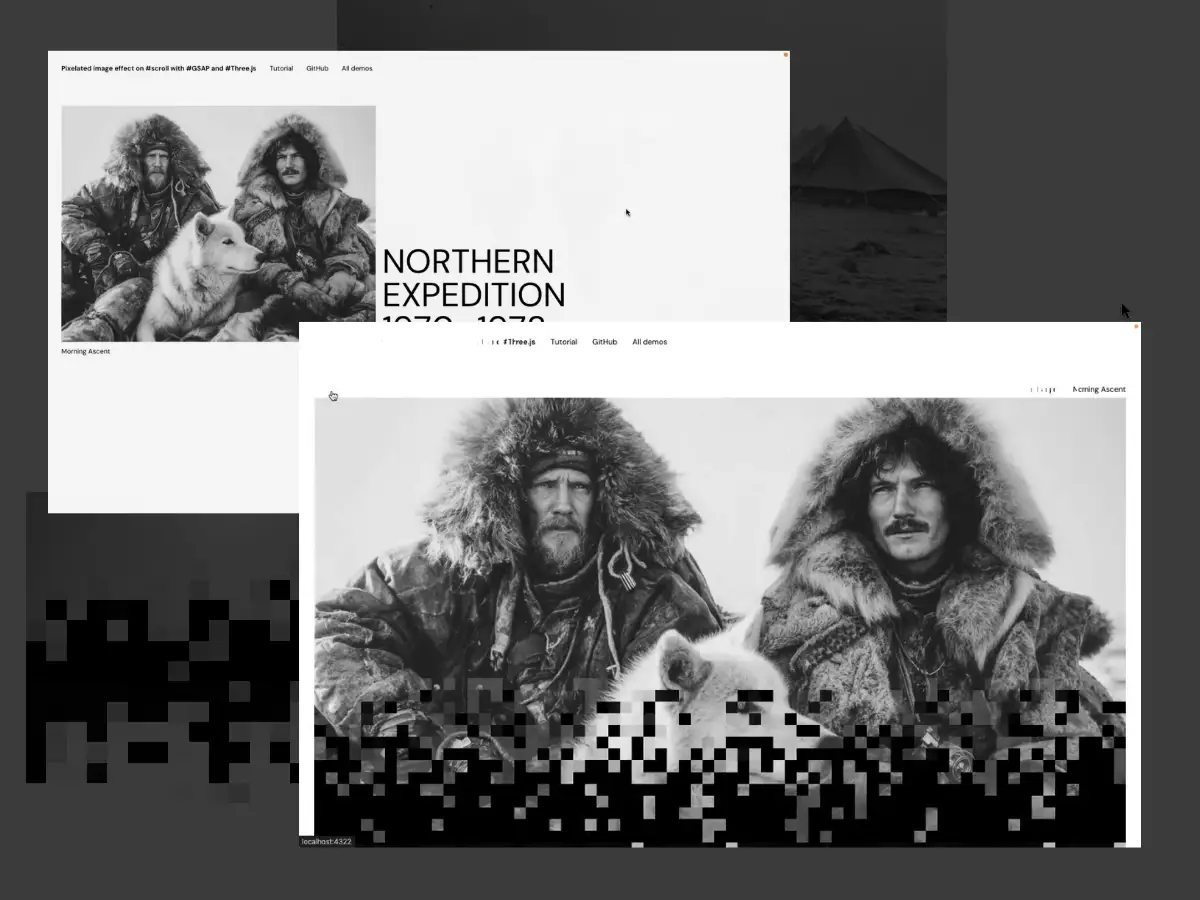
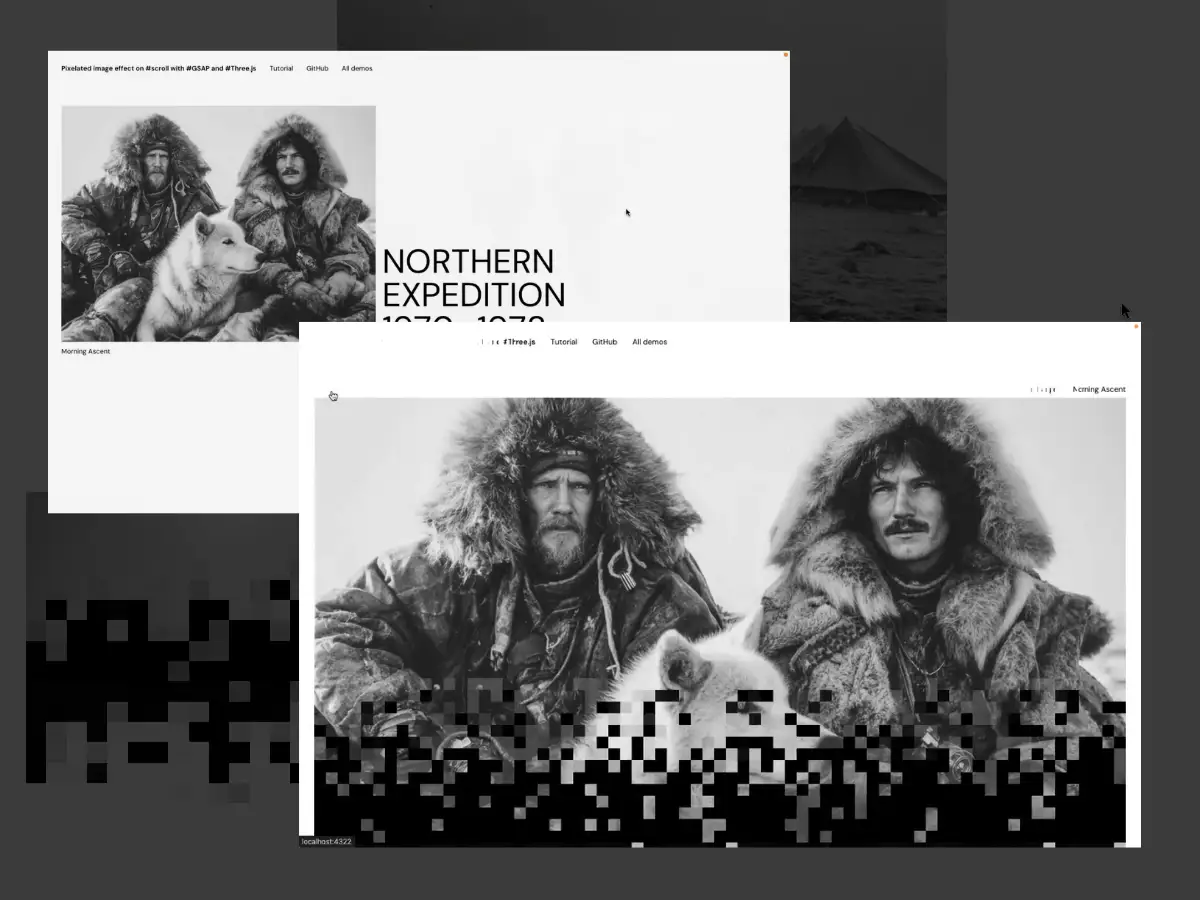
Today we’re going to build an animated, multi-page gallery where images reveal with a WebGL shader as you scroll, and then animate into a full-size detail view when you click.
To pull this off we’ll combine a few techniques that show up a lot in modern creative dev work:
- Syncing WebGL and the DOM so your Three.js planes perfectly match your HTML images
- Smooth scrolling that plays nicely with a render loop
- Scroll-triggered shader animation to reveal images as they enter the viewport
- Seamless page transitions where the clicked image visually travels between pages (without jumps)
We’ll use Astro to keep the project lightweight and easy to structure as a real multi-page site, Barba.js to control navigation and run our transition logic, and GSAP (ScrollSmoother, ScrollTrigger, SplitText, Flip) to drive the motion.
Setting up our environment
This is our initial setup:
- A home page with all the images
- A details page for each image
This will be our our home page at index.astro:
---
import Layout from '../layouts/Layout.astro';
import medias from '../data.json';
import Header from '../components/header.astro';
---

{medias[0].name}

{medias[1].name}

{medias[2].name}

{medias[3].name}

{medias[4].name}
Dark spruce forest frowned on either side the frozen waterway. The
trees had been stripped by a recent wind of their white covering of
frost, and they seemed to lean toward each other, black and ominous,
in the fading light. A vast silence reigned over the land. The land
itself was a desolation, lifeless, without movement, so lonely and
cold that the spirit of it was not even that of sadness. There was a
hint in it of laughter, but a laughter more terrible than any
sadness—a laughter that was mirthless as the smile of the sphinx, a
laughter cold as the frost and partaking of the grimness of
infallibility. It was the masterful and incommunicable wisdom of
eternity laughing at the futility of life and the effort of life. It
was the Wild, the savage, frozen-hearted Northland Wild.

{medias[5].name}

{medias[6].name}

{medias[7].name}
The man strode ahead of the team. He was a young man, tall, strong,
with light hair and blue eyes, and his face was expressionless as the
land he traversed. He carried his rifle loosely in his hand, as though
it were part of his body, and he swung along with the ease of long
familiarity. The woman followed the sled. She was young, too, and her
face bore the stamp of the Northland—endurance and patience, and a
vague hint of suffering. The child, wrapped in furs, slept in the
sled, its face peaceful and unconscious of the grim struggle being
waged on its behalf.

{medias[8].name}
And this will be our details page template at [index].astro, It’s fetching a data.json file containing all the data and generating a page for each image.
---
import Layout from '../layouts/Layout.astro';
import medias from '../data.json';
import Header from '../components/header.astro';
export const getStaticPaths = async () => {
return medias.map((media) => {
return {
params: { index: media.index.toString() },
props: {
media,
},
};
});
};
const { media } = Astro.props;
---

Now Let’s apply some styling and add some data for each image.
The Layout component is the root container where our JavaScript app will be imported. It’s a template that will be shared across all the pages of our website. That’s also where our WebGL canvas will be sitting
---
import "../styles/index.css"
---


    WebGL Pixel Effect on Scroll with GSAP, Three.js and Astro
The main.ts file is the entry point to our JavaScript app:
class App {

  constructor()
  {
    // Application entry point
  }
}

export default new App()
Now for our image reveal effect we will need to use WebGL, for that I will create a Canvas.ts class that will instantiate a Three.js environment.
import * as THREE from "three"

export default class Canvas {
  element: HTMLCanvasElement
  scene: THREE.Scene
  camera: THREE.PerspectiveCamera
  renderer: THREE.WebGLRenderer

  constructor() {
    this.element = document.getElementById("webgl") as HTMLCanvasElement

    this.createScene()
    this.createCamera()
    this.createRenderer()
    this.setSizes()
    this.addEventListeners()
  }

  createScene() {
    this.scene = new THREE.Scene()
  }

  createCamera() {
    this.camera = new THREE.PerspectiveCamera(
      75,
      window.innerWidth / window.innerHeight,
      0.1,
      100,
    )
    this.scene.add(this.camera)
    this.camera.position.z = 10
  }

  createRenderer() {
    this.dimensions = {
      width: window.innerWidth,
      height: window.innerHeight,
      pixelRatio: Math.min(2, window.devicePixelRatio),
    }

    this.renderer = new THREE.WebGLRenderer({
      canvas: this.element,
      alpha: true,
    })
    this.renderer.setSize(this.dimensions.width, this.dimensions.height)
    this.renderer.render(this.scene, this.camera)

    this.renderer.setPixelRatio(this.dimensions.pixelRatio)
  }

  setSizes() {
    let fov = this.camera.fov * (Math.PI / 180)
    let height = this.camera.position.z * Math.tan(fov / 2) * 2
    let width = height * this.camera.aspect

    this.sizes = {
      width: width,
      height: height,
    }
  }

  addEventListeners() {
    window.addEventListener("resize", this.onResize.bind(this))
  }

  onResize() {
    ScrollTrigger.refresh()

    this.dimensions = {
      width: window.innerWidth,
      height: window.innerHeight,
      pixelRatio: Math.min(2, window.devicePixelRatio),
    }

    this.camera.aspect = window.innerWidth / window.innerHeight
    this.camera.updateProjectionMatrix()
    this.setSizes()

    this.renderer.setPixelRatio(this.dimensions.pixelRatio)
    this.renderer.setSize(this.dimensions.width, this.dimensions.height)
  }

  render()
  {
     //updating the Canvas data
  }


}
This class will be called and instantiated in the main app and updated in a render loop.
import "./style.css"
import Canvas from "./canvas"

class App {
  canvas: Canvas

  constructor() {
    this.canvas = new Canvas()

    this.render()
  }

  render() {
    this.canvas.render()
    requestAnimationFrame(this.render.bind(this))
  }
}

export default new App()
Once it’s initialized it will create a Media object for each image on the page:
createMedias() {
  const images = document.querySelectorAll("img")

  images.forEach((image) => {
    const media = new Media({
      element: image,
      scene: this.scene,
      sizes: this.sizes,
    })

    this.medias?.push(media)
  })
}
For the demo, selecting all images with document.querySelectorAll("img") keeps things simple, but in a real project you’ll usually want to scope the selection (for example, to the gallery container) or target a dedicated attribute like [data-webgl-media]. That prevents picking up unintended images (logos, UI icons, hidden images) and keeps your WebGL layer tightly coupled to the content you actually want to render.
The Media object is a class that receive an Image element and create a PlaneGeometry Mesh that will be scaled to match the HTML element and use the image itself as a texture. It’s using a ShaderMaterial that have a uProgress uniform that will control the progress of the reveal effect.
import * as THREE from "three"

interface Props {
  element: HTMLImageElement
  scene: THREE.Scene
  sizes: Size
}

export default class Media {
  element: HTMLImageElement
  scene: THREE.Scene
  sizes: Size
  material: THREE.ShaderMaterial
  geometry: THREE.PlaneGeometry
  mesh: THREE.Mesh
  nodeDimensions: Size
  meshDimensions: Size
  meshPostion: Position
  elementBounds: DOMRect
  currentScroll: number
  lastScroll: number
  scrollSpeed: number

  constructor({ element, scene, sizes }: Props) {
    this.element = element
    this.scene = scene
    this.sizes = sizes

    this.currentScroll = 0
    this.lastScroll = 0
    this.scrollSpeed = 0

    this.createGeometry()
    this.createMaterial()
    this.createMesh()
    this.setNodeBounds()
    this.setMeshDimensions()
    this.setMeshPosition()
    this.setTexture()

    this.scene.add(this.mesh)
  }

  createGeometry() {
    this.geometry = new THREE.PlaneGeometry(1, 1, 1, 1)
  }

  createMaterial() {
    this.material = new THREE.ShaderMaterial({
      vertexShader,
      fragmentShader,
      uniforms: {
        uTexture: new THREE.Uniform(new THREE.Vector4()),
        uResolution: new THREE.Uniform(new THREE.Vector2(0, 0)),
        uContainerRes: new THREE.Uniform(new THREE.Vector2(0, 0)),
        uProgress: new THREE.Uniform(1),
        uGridSize: new THREE.Uniform(20),
        uColor: new THREE.Uniform(new THREE.Color("#242424")),
      },
    })
  }

  createMesh() {
    this.mesh = new THREE.Mesh(this.geometry, this.material)
  }

  setNodeBounds() {
    this.elementBounds = this.element.getBoundingClientRect()

    this.nodeDimensions = {
      width: this.elementBounds.width,
      height: this.elementBounds.height,
    }
  }

  setMeshDimensions() {
    this.meshDimensions = {
      width: (this.nodeDimensions.width * this.sizes.width) / window.innerWidth,
      height:
        (this.nodeDimensions.height * this.sizes.height) / window.innerHeight,
    }

    this.mesh.scale.x = this.meshDimensions.width
    this.mesh.scale.y = this.meshDimensions.height
  }

  setMeshPosition() {
    this.meshPostion = {
      x: (this.elementBounds.left * this.sizes.width) / window.innerWidth,
      y: (-this.elementBounds.top * this.sizes.height) / window.innerHeight,
    }

    this.meshPostion.x -= this.sizes.width / 2
    this.meshPostion.x += this.meshDimensions.width / 2

    this.meshPostion.y -= this.meshDimensions.height / 2
    this.meshPostion.y += this.sizes.height / 2

    this.mesh.position.x = this.meshPostion.x
    this.mesh.position.y = this.meshPostion.y
  }

  setTexture() {
    this.material.uniforms.uTexture.value = new THREE.TextureLoader().load(
      this.element.src,
      ({ image }) => {
        const { naturalWidth, naturalHeight } = image

        this.material.uniforms.uResolution.value = new THREE.Vector2(
          naturalWidth,
          naturalHeight,
        )

        this.material.uniforms.uContainerRes.value = new THREE.Vector2(
          this.nodeDimensions.width,
          this.nodeDimensions.height,
        )
      },
    )
  }

  destroy() {
    this.scene.remove(this.mesh)
    this.scrollTrigger.scrollTrigger?.kill()
    this.scrollTrigger?.kill()
    this.anchorElement?.removeEventListener("click", this.onClickHandler)
    this.anchorElement?.removeAttribute("data-home-link-active")
    this.geometry.dispose()
    this.material.dispose()
  }

  onResize(sizes: Size) {
    this.sizes = sizes

    this.setNodeBounds()
    this.setMeshDimensions()
    this.setMeshPosition()

    this.material.uniforms.uContainerRes.value = new THREE.Vector2(
      this.nodeDimensions.width,
      this.nodeDimensions.height,
    )
  }
}
ScrollSmoother
Once we have the meshes scaled and positioned correctly, we need to synchronize the scroll position of the html images and the Three.js meshes. But we can’t rely on the browser’s native scroll.
The reason for that is the way we are updating our Three.js app.
We are calling the render method in a requestAnimationFrame. The tricky part is that native scrolling and our render loop aren’t guaranteed to update in lockstep. The browser can update scroll position independently of the timing we use to render WebGL. To keep our Three.js planes perfectly aligned with the DOM, we want a scroll value that’s updated in sync with the same tick that drives rendering, which is why we introduce smooth scrolling and read the scroll position from that system.
To do so, we need to add smooth-scrolling to our app. I’m using a Scroll object that relies on the GSAP ScrollSmoother plugin.
import { ScrollSmoother } from "gsap/ScrollSmoother"

export default class Scroll {
  scroll: number
  s: globalThis.ScrollSmoother | null

  constructor() {
    this.init()
  }

  init() {
    this.scroll = 0

    this.s = ScrollSmoother.create({
      smooth: 1,
      normalizeScroll: true,
      wrapper: document.getElementById("app") as HTMLElement,
      content: document.getElementById("smooth-content") as HTMLElement,
      onUpdate: (self) => {
        this.scroll = self.scrollTop()
      },
    })
  }

  getScroll() {
    return this.scroll
  }
}
The scroll property will hold the number of pixels scrolled from the top of the page, this value is returned from the scrollTop() method in the onUpdate callback of the ScrollSmoother instance. This callback will be called each time the scroll position is updated.
The wrapper element is the root scroll container, and the content element is the scrollable content container, these two will be sitting in the root Layout :
But before that, in order for any GSAP plugin to work, we need to first register it. The best place to do that is right above our App declaration
import gsap from "gsap"
import { ScrollSmoother } from "gsap/ScrollSmoother"

gsap.registerPlugin(ScrollSmoother)

class App {
  //our main app
}
The last step is to synchronize our Three.js app with the GSAP inner time:
class App {
  canvas: Canvas
  scroll:Scroll

  constructor() {
    this.scroll = new Scroll()
    this.canvas = new Canvas()

    this.canvas.createMedias()

    this.render = this.render.bind(this)
    gsap.ticker.add(this.render)
  }

  render() {
    const scrollTop = this.scroll.getScroll()
    this.canvas.render(scrollTop)
  }
}Thegsap.tickeris like the heartbeat of the GSAP engine, it updates theglobalTimelineon everyrequestAnimationFrameevent, so it is perfectly synchronized with the browser’s rendering cycle.
Once we pass the value of the scroll to the Canvas object we apply this value to all of our medias:
export default class Canvas {
  constructor() {
    // Canvas constructor
  }

  // Canvas methods

  render(scroll: number, updateScroll: boolean = true) {
    this.medias?.forEach((media) => {
      if (updateScroll) {
        media?.updateScroll(scroll)
      }
    })

    this.renderer.render(this.scene, this.camera)
  }
}
And we add the updateScroll method to the Media object:
export default class Media {
  constructor({ element, scene, sizes }: Props) {

    // Media contructor
  }

  // Media methods

  updateScroll(scrollY: number) {
    this.currentScroll = (-scrollY * this.sizes.height) / window.innerHeight

    const deltaScroll = this.currentScroll - this.lastScroll
    this.lastScroll = this.currentScroll

    this.updateY(deltaScroll)
  }

  updateY(deltaScroll: number) {
    this.meshPostion.y -= deltaScroll
    this.mesh.position.y = this.meshPostion.y
  }
}
Now our scroll is perfectly synchronized!
ScrollTrigger
To achieve our image reveal effect, we need to animate the uProgress shader uniform of each Mesh when It’s corresponding image HTML element enters the viewport. That’s where ScrollTrigger comes in.
We are going to add a method to the Media object that will create a scrollTrigger instance to observe the image element and animate our uniform when the image enters the viewport.
observe() {
  this.scrollTrigger = gsap.to(this.material.uniforms.uProgress, {
    value: 1,
    scrollTrigger: {
      trigger: this.element,
      start: "top bottom",
    },
    duration: 1.6,
    ease: "linear",
  })
}
To make this effect a little bit more interesting we are going to reset it when the element goes out of the viewport and restart it when It becomes visible again. To do so, we are going to use the toggleActions property of ScrollTrigger. You can read about toggleActions here but to keep it short. It’s a property that allows you to determine the scrolltrigger animation behavior at 4 distinct steps of the scroll:
- When the scroll position moves forward past the “start” trigger
- When the scroll position moves forward past the “end” trigger
- When the scroll position moves backward past the “end” trigger
- When the scroll position moves backward past the “start” trigger
Here’s how we are using the property:
observe() {
  this.scrollTrigger = gsap.to(this.material.uniforms.uProgress, {
    value: 1,
    scrollTrigger: {
      trigger: this.element,
      start: "top bottom",
      end: "bottom top",
      toggleActions: "play reset restart reset",
    },
    duration: 1.6,
    ease: "linear",
  })
}
This method will be called right after the Media objects are initialized. in the createMedias method of the Canvas object:
createMedias() {
  const images = document.querySelectorAll("img")
  images.forEach((image) => {
    const media = new Media({
        element: image,
        scene: this.scene,
        sizes: this.sizes,
      })

      this.medias?.push(media)
  })

  this.medias?.forEach((media) => {
    media?.observe()
  })
}
SplitText
To make our demo more immersive, we are going to animate the landing moments of the text on the pages. The animation consists of a state transition between an invisible state and a visible state.
This is what the animation looks like:
Let’s first create a TextAnimation object that will target the text elements and prepare the content for the animation.
To achieve the animation above, we need a way to split the text content into individual lines and animate each line with an incremental delay. Fortunately GSAP allows us to do this using the SplitText plugin.
The TextAnimation object selects all elements with data-text-animation and data-text-animation-split and applies SplitText to them. Elements that only have data-text-animation will simply fade in and out.
import gsap from 'gsap';
import { SplitText } from 'gsap/SplitText';

interface BaseAnimationProps {
  element: HTMLElement;
  inDuration: number;
  outDuration: number;
  inDelay?: number;
}

interface SplitAnimationProps extends BaseAnimationProps {
  split: globalThis.SplitText;
  inStagger?: number;
  outStagger?: number;
}

export default class TextAnimation {
  elements: HTMLElement[];
  splitAnimations: SplitAnimationProps[] = [];
  fadeAnimations: BaseAnimationProps[] = [];
  splitTweens: gsap.core.Tween[] = [];
  fadeTweens: gsap.core.Tween[] = [];

  constructor() {}

  init() {
    this.splitAnimations = [];
    this.fadeAnimations = [];

    this.elements = document.querySelectorAll(
      '[data-text-animation]'
    ) as unknown as HTMLElement[];

    this.elements.forEach((el) => {
      const inDuration = parseFloat(
        el.getAttribute('data-text-animation-in-duration') || '0.6'
      );

      const outDuration = parseFloat(
        el.getAttribute('data-text-animation-out-duration') || '0.3'
      );

      const inDelay = parseFloat(
        el.getAttribute('data-text-animation-in-delay') || '0'
      );

      // Check if this should be a split text animation
      if (el.hasAttribute('data-text-animation-split')) {
        const split = SplitText.create(el, {
          type: 'lines',
          mask: 'lines',
          autoSplit: true,
        });

        const inStagger = parseFloat(
          el.getAttribute('data-text-animation-in-stagger') || '0.06'
        );

        const outStagger = parseFloat(
          el.getAttribute('data-text-animation-out-stagger') || '0.06'
        );

        split.lines.forEach((line) => {
          gsap.set(line, { yPercent: 100 });
        });

        gsap.set(el, { autoAlpha: 1, visibility: 'visible' });

        this.splitAnimations.push({
          element: el,
          split,
          inDuration,
          outDuration,
          inStagger,
          outStagger,
          inDelay,
        });
      } else {
        // Default fade animation
        gsap.set(el, { autoAlpha: 0, visibility: 'hidden' });

        this.fadeAnimations.push({
          element: el,
          inDuration,
          outDuration,
          inDelay,
        });
      }
    });
  }
This code is splitting the text content of the target elements to an array of lines.
By adding mask: "lines" the lines are then wrapped in a div with overflow:clip.
We can then access the lines elements in split.lines.
We are also applying a transform: translateY(100%) to the lines of the text container for the initial state of the animation. It will make the text invisible since each character is wrapped in a masking div.
Now let’s add this method to the TextAnimation class. It will animate the text from the invisible to the visible state. I also added the same Scrolltrigger logic we had for the images.
animateIn({ delay = 0 } = {}) {
    // Split text animations
    this.splitAnimations.forEach(
      ({ element, split, inDuration, inStagger, inDelay }) => {
        const tweenWithScroll = gsap.to(split.lines, {
          yPercent: 0,
          stagger: inStagger,
          scrollTrigger: {
            trigger: element,
            start: 'top bottom',
            end: 'bottom top',
            toggleActions: 'play reset restart reset',
          },
          ease: 'expo',
          duration: inDuration,
          delay: inDelay + delay,
        });

        this.splitTweens.push(tweenWithScroll);
      }
    );

    // Fade animations
    this.fadeAnimations.forEach(({ element, inDuration, inDelay }) => {
      const fadeTween = gsap.to(element, {
        autoAlpha: 1,
        scrollTrigger: {
          trigger: element,
          start: 'top bottom',
          end: 'bottom top',
          toggleActions: 'play reset restart reset',
        },
        ease: 'power2.out',
        duration: inDuration,
        delay: inDelay + delay,
      });

      this.fadeTweens.push(fadeTween);
    });
    return gsap.timeline();
  }
This method is called once the images are loaded to make sure our text animation is synchronized with the images animations:
class App {
  canvas: Canvas
  scroll: Scroll
  textAnimation: TextAnimation

  constructor() {

    this.scroll = new Scroll()
    this.canvas = new Canvas()
    this.textAnimation = new TextAnimation()
    this.loadFont(() => {
      this.textAnimation.init();
    });

    this.loadImages(() => {
      this.canvas.createMedias();
      if (this.fontLoaded) {
        this.textAnimation.animateIn();
      } else {
        window.addEventListener('fontLoaded', () => {
          requestAnimationFrame(() => {
            requestAnimationFrame(() => {
              this.textAnimation.init();
              this.textAnimation.animateIn({ delay: 0.3 });
            });
          });
        });
      }
    });

    // ...App constructor
  }

  // ...App methods
}
This is what the final version of the TextAnimation looks like. I added an animateOut method and a destroy logic to clear the SplitText object when the user change the page.
Flip
To create this page transition, we need to change the Image parent element from the homepage link container to the details page cover.
Changing an HTML element parent is achieved by simply appending the element itself to the target parent. But It’s done instantly and without any way to animate the state change natively. For that we need to use Flip.
Flip plugin lets you seamlessly transition between two states even if there are sweeping changes to the structure of the DOM that would normally cause elements to jump.
For the page transition I’m using Barba.js. This library allows us to run custom code when a navigation event is triggered (by clicking on a link or the browser’s navigation buttons) and run the page change only once our code is finished.
In this setup, Astro generates real pages (/, /[index], etc.), and Barba simply intercepts internal link navigations to swap the page content without a full refresh. That means your links must remain standard navigations, and Barba’s lifecycle hooks (before, leave, beforeEnter, after) give us the perfect place to run animations and DOM moves while the old and new containers are both accessible.
This is how it works:
barba.init({
  prefetchIgnore: true,
  transitions: [
    {
      name: "my-custom-page-transition",
      from: {
        custom: () => {
          //the condition to determine if the transition should run
          const myCondition = true;
          if (!myCondition) return false

          return true
        },
      },
      before: () => {
        //Runs right after the page change event is triggered

        return new Promise((resolve) => {
          resolve()
          // run the leave() callback
        })
      },

      leave: () => {
        //runs right before we leave the current page
        return new Promise((resolve) => {
          resolve()
          //leave the current page
        })
      },
      beforeEnter: () => {
        //right after leaving the old page and before entering the new one
      },
      after: () => {
        //runs after we have entered the new page
      },
    },
  ],
})
This allows us to access the DOM elements of both pages at the same place!
Because Barba swaps pages without a full refresh, it’s important to clean up anything that “sticks around” between navigations. GSAP plugins like ScrollTrigger and SplitText create instances and DOM wrappers that won’t automatically disappear when the old page is removed, so you should kill your triggers/tweens and revert SplitText before leaving a route, then re-init them after entering the next one. The same applies to Three.js: removing a mesh from the scene isn’t enough, if you recreate WebGL objects per page, make sure you dispose geometries/materials/textures for the medias you no longer need to avoid GPU memory creeping up after multiple transitions.
When you click on an image link on the homepage it will trigger a page change, the before callback of our Barba instance runs and we can save the image element in our memory by assigning it to a variable, then once we get to the new page, in the after callback we can append the previously saved image to the cover container.
This the idea: when clicking on a link, we add the data-home-link-active attribute to the clicked link
this.anchorElement?.addEventListener("click", (e) => {
  e.currentTarget.setAttribute(
    "data-home-link-active",
    "true"
  )
})
Let’s decompose the page transition animation step by step. The first step for a Barba transition is the condition for the animation to happen. In our example we want the transition to happen only if the user click on an image link.
Let’s name this transition home-detail
name: 'home-detail',
from: {
  custom: () => {
    const activeLink = document.querySelector('a[data-home-link-active="true"]');
    if (!activeLink) return false;

    return true;
  },
},
The animation happen only if we find a link with the data-home-link-active attribute.
Next, in the before callback we need to :
- Block The scroll during the animation
- Animate out the text with the
animateOutcallback that returns a gsap timeline. - Animate out the non-selected medias and clear off their scrollTrigger instances
- Animate in the selected media to make sure the reveal animation is finished before running the page transition. this way we can also seamlessly unhide the html image element during the transition.
The before finishes running once the GSAP timeline is over. At this point we are still in the home page:
before: () => {
  this.scrollBlocked = true;
  this.scroll.s?.paused(true);

  const tl = this.textAnimation.animateOut();

  activeLinkImage = document.querySelector('a[data-home-link-active="true"] img')

  this.canvas.medias?.forEach((media) => {
    if (!media) return;
    media.scrollTrigger.kill();

    const currentProgress = media.material.uniforms.uProgress.value;
    const totalDuration = 1.2;

    if (media.element !== activeLinkImage) {
      const remainingDuration = totalDuration * currentProgress;

      tl.to(
        media.material.uniforms.uProgress,
        {
          duration: remainingDuration,
          value: 0,
          ease: 'linear',
        },
        0
      );
    } else {
      const remainingDuration = totalDuration * (1 - currentProgress);

      tl.to(
        media.material.uniforms.uProgress,
        {
          value: 1,
          duration: remainingDuration,
          ease: 'linear',
          onComplete: () => {
            media.element.style.opacity = '1';
            media.element.style.visibility = 'visible';
            gsap.set(media.material.uniforms.uProgress, { value: 0 });
          },
        },
        0
      );
    }
  });

  return new Promise((resolve) => {
    tl.call(() => {
      resolve();
    });
  });
}
During the leaving animation, we are going to offset the page content by minus the current scrolled value to “cancel” the scroll distance during the transition.
Once all of the leaving/cleaning logic is handled, we can start implementing the Flip animation.
The animation consists of 3 steps:
- In the
leavecallback we useFlip.getStateon our target image to register It’s initial state. - In the
aftercallback we append the saved image to It’s new container, this is the final state. - Right after changing the state, we call
Flip.fromto animate the state transition.
leave: () => {
  scrollTop = this.scroll.getScroll();

  const container = document.querySelector('.container') as HTMLElement;
  container.style.position = 'fixed';
  container.style.top = `-${scrollTop}px`;
  container.style.width = '100%';
  container.style.zIndex = '1000';

  this.mediaHomeState = Flip.getState(activeLinkImage);
  this.textAnimation.destroy();
},
// We reset and clean up the scroll logic before entering the new page.
beforeEnter: () => {
  this.scroll.reset();
  this.scroll.destroy();
},
Once we land on the new page, we can append our image to It’s target container and animate the parent change with Flip.from:
after: () => {
  this.scroll.init();
  this.textAnimation.init();

  const detailContainer = document.querySelector('.details-container')

  detailContainer.innerHTML = '';
  detailContainer.append(activeLinkImage);

  return new Promise((resolve) => {
    let activeMedia: Media | null = null;

    this.textAnimation.animateIn({ delay: 0.3 });

    Flip.from(this.mediaHomeState, {
      absolute: true,

      duration: 1,
      ease: 'power3.inOut',

      onComplete: () => {
        this.scrollBlocked = false;
        this.canvas.medias?.forEach((media) => {
          if (!media) return;
          if (media.element !== activeLinkImage) {
            media.destroy();
            media = null;
          } else {
            activeMedia = media;
          }
        });

        this.canvas.medias = [activeMedia];

        resolve();
      },
    });
  });
},
When the animation is over, we destroy the other Meshes since they are no longer visible.
One small caveat: the data-home-link-active approach is driven by a click, so it won’t automatically cover cases like browser back/forward navigation or direct page loads. In the full implementation you’ll typically add a fallback based on the current URL (or Barba’s navigation data) so the correct media can be identified even when there’s no click event.
As always this is a simplified version to highlight the most interesting steps, you can see the full code of this class here. I added additional logic for the routing and handling some edge cases.
And that’s it, thanks for reading!